Reaction video maker
A reaction video maker that survives the pause button
Load the clip, press record, react. OverReact records your camera against the source in the browser and rebuilds the sync through every pause, seek and restart — so the composite lands frame-accurate without you nudging a single track in an editor.
Try Pro free for 3 days — $0 today, then $39.99/month. Cancel before the trial ends and you pay nothing. Free stays free afterwards — with a 24-hour delete on anything you store.
- Layouts10
- Aspects9:16 · 16:9
- Layout choiceAfter the take
- InstallNone
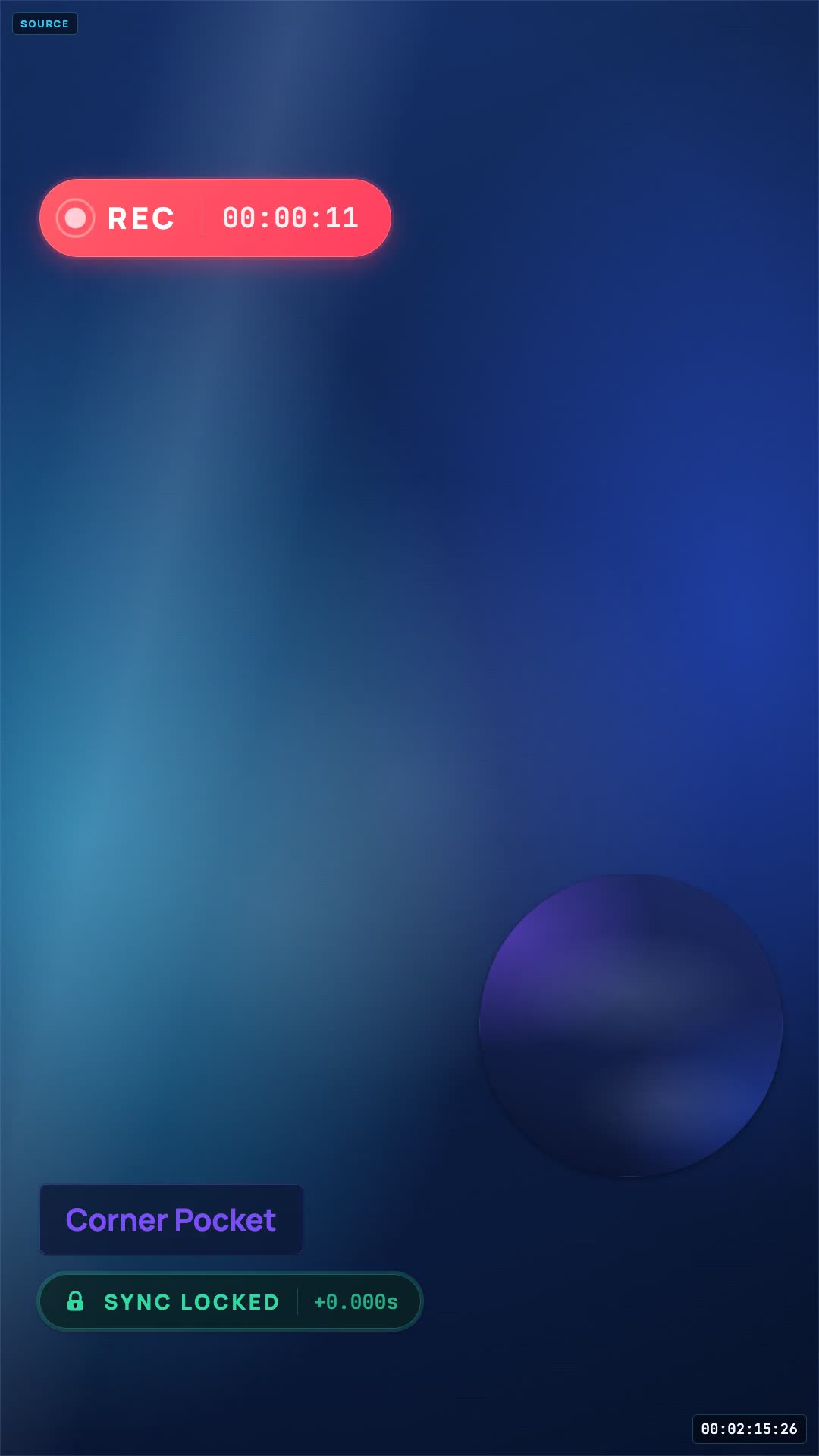 Recorded in one take
Source04:31.20
Camera06:12.04
Offset0 frames
What actually changes
Four decisions a reaction recorder should never force on you up front
- 01
Build the scene before you know what the take is.
Open a page, allow the camera, drag the clip in.
Nothing to configure → - 02
Line the two tracks up by ear, one nudge at a time.
The alignment is recorded while it happens, not guessed at afterwards.
How the timeline works → - 03
Pause once and every frame after it is offset.
Pause, rewind, walk away — the render still lands on the right frame.
Watch the proof → - 04
Change the layout and record the whole thing again.
Change the layout and re-render. The take never moves.
See all 10 layouts →
The whole workflow
Four steps, and only one of them is the part you were dreading
Most reaction tooling asks you to make the hard choices before you have watched anything. Here the only thing you commit to at the start is which video you are reacting to.
- 1
Load the source
~30sDrag in a video file you already have. That is the only way in — there is no YouTube or TikTok link to paste, and no tab to capture.
- 2
Record the take
your takePress play and react. Pause to make a point, rewind to watch a beat again, stop and come back — every one of those is written into the timeline as it happens.
- 3
Pick the layout
~2 minNow that you have seen the take, choose how the frame divides. Preview each of the 10 against your real footage instead of guessing beforehand.
- 4
Export what you need
2–6 minThe composite for posting — and if the framing was wrong, the same take rendered again in another layout or aspect rather than recorded again.
One caveat worth stating before you start: OverReact never downloads anything from YouTube, TikTok or anywhere else on your behalf. A session begins with a file you already have. Sourcing the material and holding the rights to it stays on your side of the line.
The part that is actually hard
Sync you record, not sync you rebuild
Waveform matching works right up until the source has no distinctive transient, or you clapped off-mic, or you paused halfway through. So the recorder writes the relationship down while it happens instead of reconstructing it later from two audio files and hope.
It records positions, not elapsed time
Every play, pause and seek is stamped with the wall clock and with the source's own playhead at that instant. Those two numbers are what make a composite reconstructable.
A pause is a gap the renderer knows about
Your camera keeps rolling while the source sits still. Because the stop and the restart are both in the timeline, the render holds your face against the frame you were actually looking at.
A backwards seek replays, it does not shift
Rewind ten seconds and the render puts that section of the source underneath the section of your camera that reacted to it — the second time through, not the first.
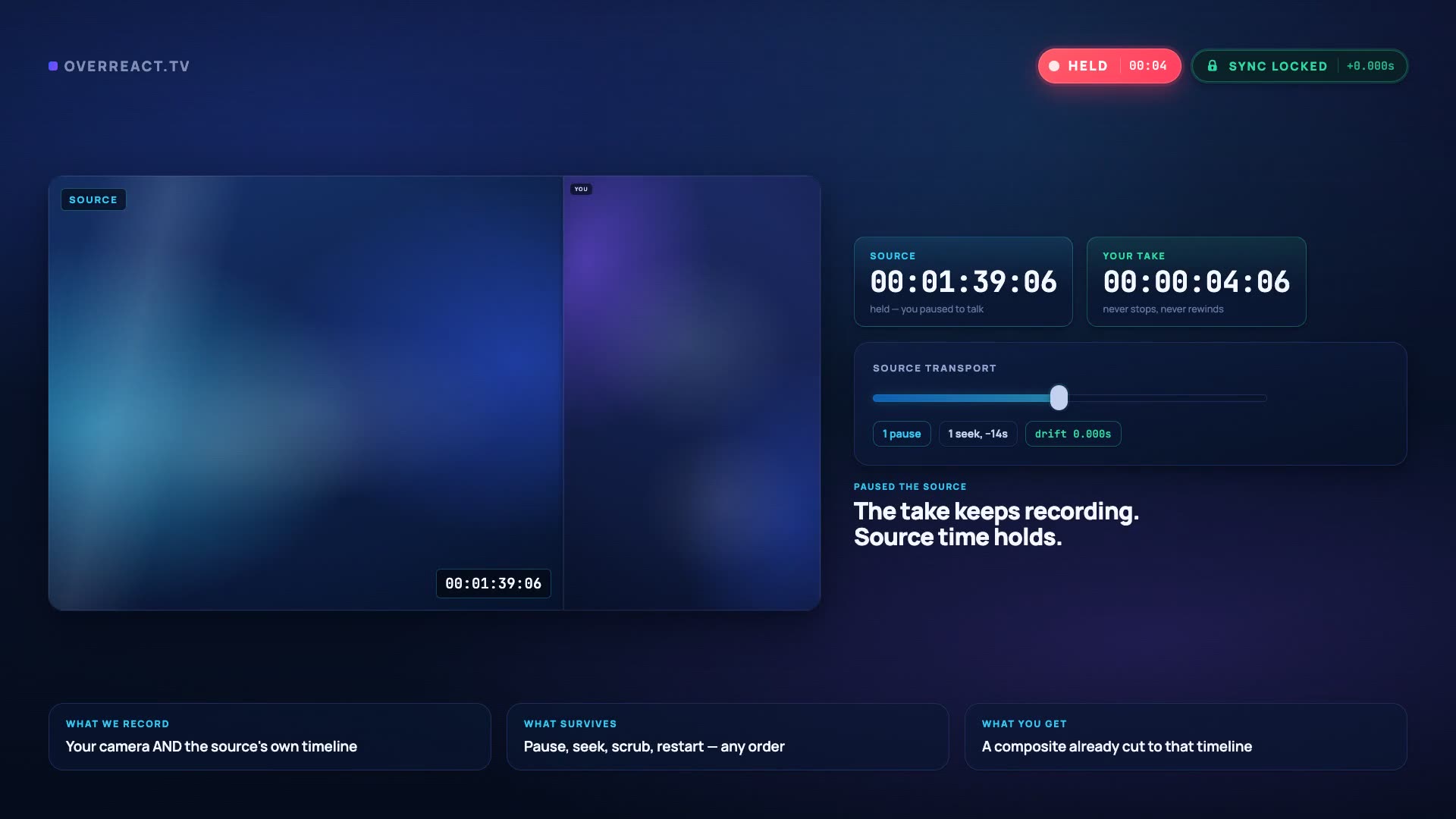 Pause + seek test
Layout is a render decision
10 ways to divide the frame, chosen after you have watched the take
Nothing about how the video looks is baked into the footage. Switching from a corner circle to a top-and-bottom split costs a render, never a re-record.
Above the Fold
FreeSource top-center, reactor below full-width. The TikTok classic.
Corner Pocket
ProSource full-bleed, reactor circular PiP in any corner. Streamer classic.
Face First
FreeFlip the stack — your reaction on top where the eye lands, the clip underneath, and the caption strip left empty.
Full Focus
ProYou full-frame; source rides as audio with an animated waveform + title card. Commentary format.
Green Room
ProYou full-frame, source floating in a rounded window. Green-screen style.
Headliner
FreeThe clip keeps the whole frame and you sit over it in a tall rounded card — a real presence, not a webcam bubble in the corner.
Marquee
FreeBoth frames matted on a dark stage with real breathing room. Nothing edge to edge, nothing sitting under the captions.
Sidecut
ProSource pinned left full-height, reactor right. Duet grammar.
Split Reaction
Pro50/50 split — source and reactor side by side, or two reactors.
Spotlight
FreeThe clip fills the frame and you sit on the thirds line as a big soft circle — clear of the caption bar and the action rail.
What lands in your downloads
A finished video, and the raw material to change your mind
The composite is what you post. The take behind it stays as separate tracks on our side, so a different layout or a different aspect is a render away rather than a re-record.
- MP4
- 9:16
- 16:9
One format leaves here and that is the only one claimed: the MP4 composite. There are no project files, no separate camera and source downloads and no caption sidecar — so if you finish in CapCut, the composite workflow is the honest route.
- reaction-9x16.mp4the finished composite, in the layout you chose
- take-01-16x9.mp4the same take, widescreen — one more render, no re-record
- take-01-9x16-green-room.mp4and again in a different layout, if the first was wrong
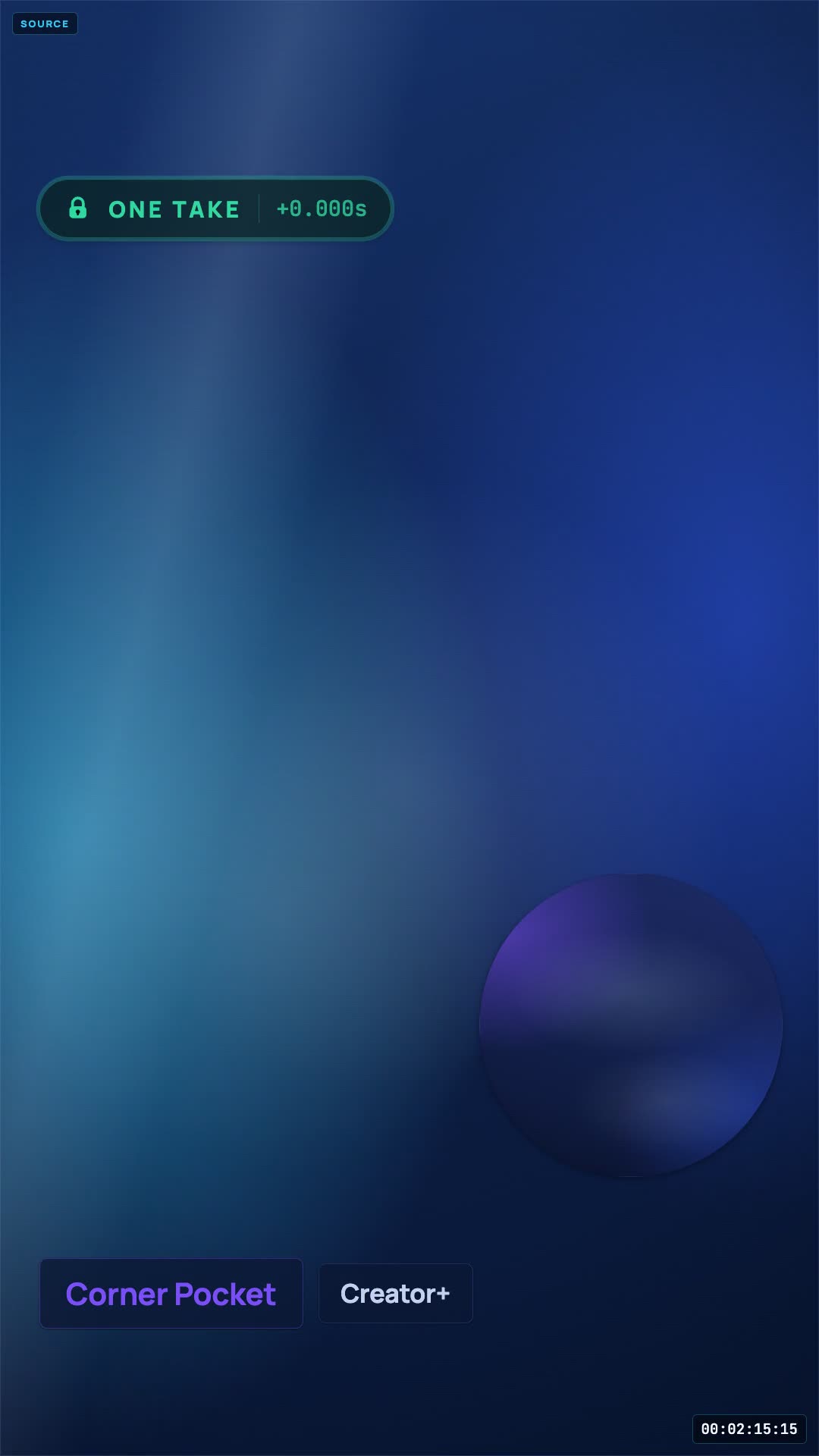 One take, re-rendered
The same take, rendered a second time in a different layout.
Before you sign up
The questions people actually ask
If the answer you need is not here, the sibling pages go deeper: the full tutorial, the layout geometry, or what each plan costs.
Is there a free reaction video maker here?
Yes. Free gives you 720p exports, the free layouts and a “Made with OverReact” watermark. The one thing to know before you rely on it: on Free, recordings and exports are permanently deleted 24 hours after they are created. Download them the same day, or upgrade to keep them.
Do I have to install anything?
No. It runs in the browser and asks for camera and microphone permission the way a video call does. There is no desktop app, no plugin and nothing to keep updated.
Which browsers work best?
Chromium desktop browsers — Chrome, Edge, Brave, Arc — are the most capable and the ones we build against first. Safari works too, and mobile browsers can record as well. Whichever you use, the source is a video file you upload, so getting your clip in is the same everywhere.
Can I use my phone as the camera?
The studio itself runs in your phone's browser — Safari or Chrome — so you can record the whole session from the phone, camera and all. There is no separate phone-pairing mode; the phone IS a full studio.
Can somebody react with me?
On Pro. A guest joins from their own browser and records locally, so each person's camera stays crisp instead of degrading over the connection — then everyone is composited into the one finished video.
How long can a single session be?
Free is for proving the sync works; Pro is for running a channel. Pro starts with a 3-day free trial — a card goes on file, $0 is charged today, then $39.99/month — so you can find out whether you need it before any money moves.
Record something today
The sync either holds or it does not. One take will tell you.
Start a session, pause the source halfway through, rewind it, and watch the export land on the right frame. On Free, recordings and exports are permanently deleted 24 hours after they are created. Download them before then, or upgrade to keep them.
Try Pro free for 3 days — $0 today, then $39.99/month. Cancel before the trial ends and you pay nothing. 14-day refund on your first charge. Cancel any time.
Not recording today?
Leave an address and we will tell you when a layout, an export format or a browser gets added. No drip sequence, no “our journey” newsletter.